
Authentication
To sign in to Personal Area, complete the following steps.
1. Open the Personal Area page.
TEST: https://mp3.uat.all2pay.net
PROD: https://mp3.all2pay.net
The authentication page will open.
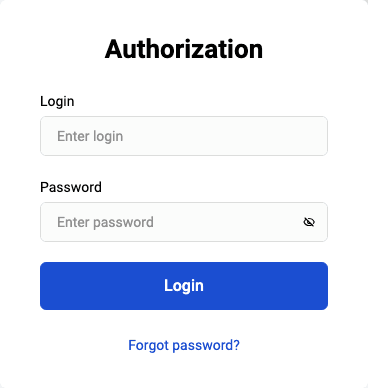
2. Enter your '-operator' login and password in the Login and Password fields.
3. Click on the Log In button.
If the credentials are correct, your Personal Area will open.
Logging out
To log out of the Personal Area, click on the  button in top of the navigation bar to the right.
Changing interface language
To change the language in which the interface of your Personal Area is displayed, follow these steps.
- Log in to Personal Area.
- At the top of the navigation bar to the right, click on the icon with a flag.
Available interface languages will be displayed.
- Click on the desired language icon.
The Personal Area will automatically be displayed in the selected language.
Settings
Sber Elcom credentials
Partners integrating with direct Sber Elcom protocol should specify the credentials provided by Sber to make the Elcom payment gate available for routing payments via the Payment service. Specify the login and password in the Settings -> Payment settings -> Integrations section.
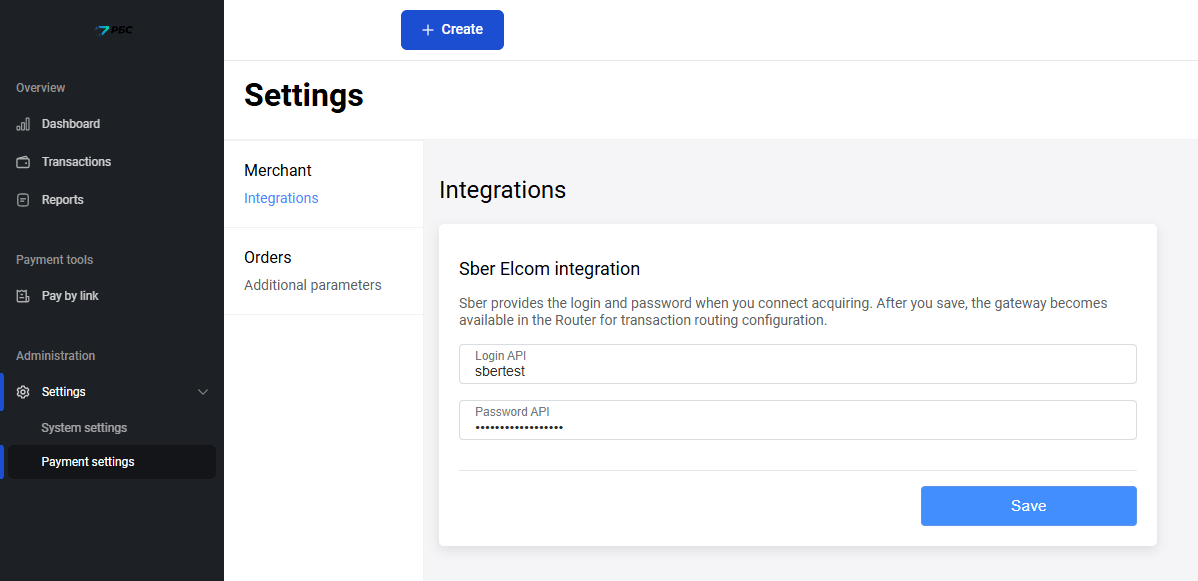
Then contact the technical support team and ask them to add the Elcom payment gateway to the routing rules.
Dashboard
To display the Dashboard page, click on the  icon in the navigation bar to the left.
The page contains information about transactions:
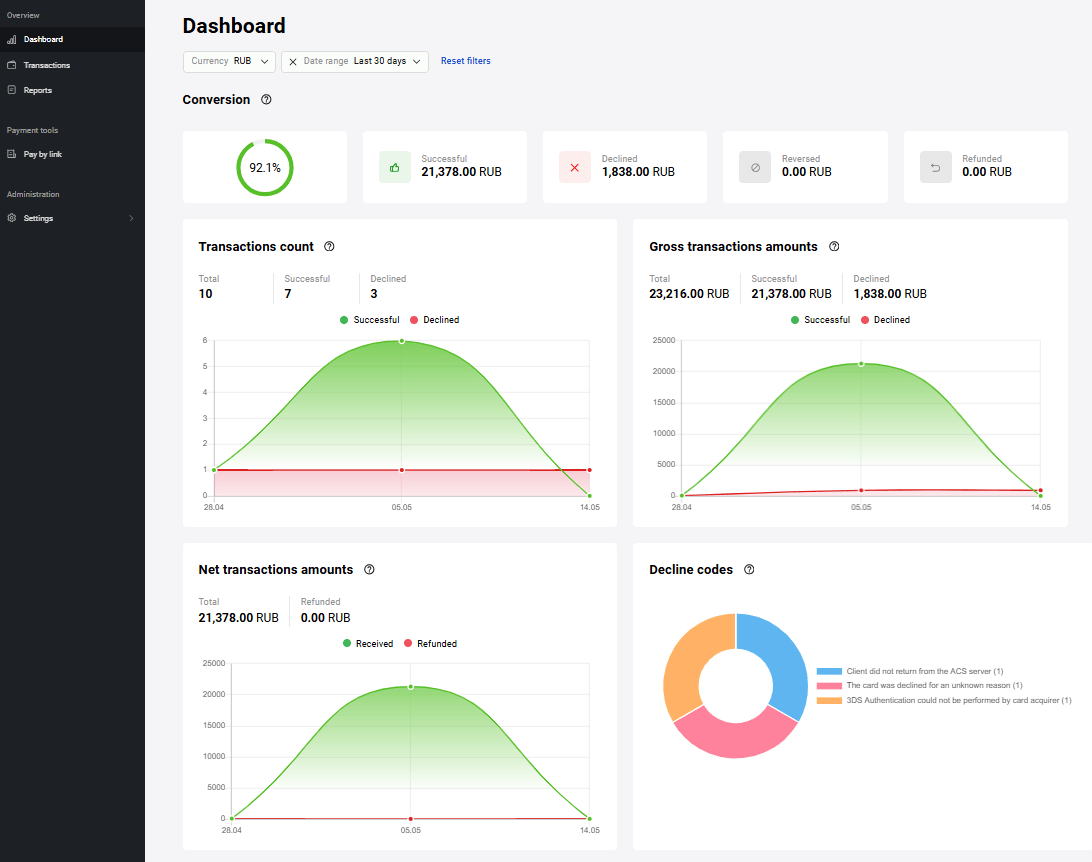
The menu at the top allows you to select the period for which the transaction information will be displayed. The following values are available:
- Day;
- Week;
- Month;
- Year.
The Conversion graph displays the percentage of successful transactions to the total number of transactions.

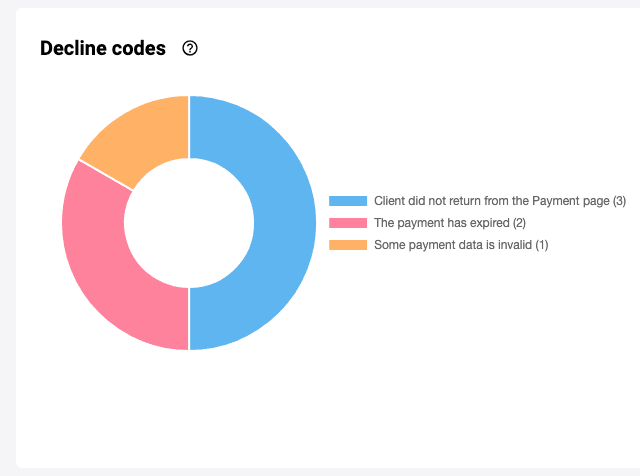
The Decline codes graph shows the major causes of order processing errors.
The Transactions count graph displays information about transactions for the selected period.
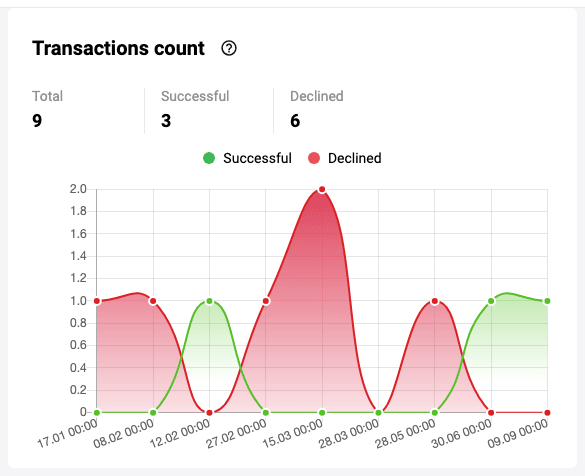
The counters on the chart are the following:
- Total transactions – the total number of transactions
- Successful – the number of successful transactions
- Unsuccessful – the number of transactions during the processing of which an error occurred.
The Gross transactions amounts graph displays information about amounts of successful and declined transactions.
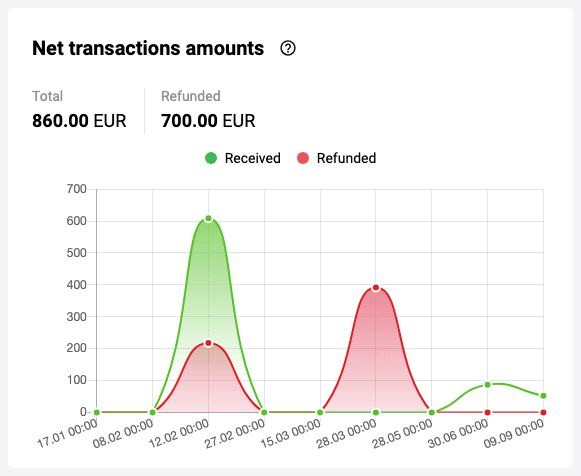
The Net transactions amounts graph displays information about amounts of successful vs. refunded/reversed transactions.
Pay by link
You can issue an invoice to the buyer for payment for goods or services by e-mail. To do so, use the Pay by link section of the Merchant Portal. Once the invoice is issued, the buyer receives an e-mail and follows the link in it to the payment page.
Sending a link to a payment page by e-mail
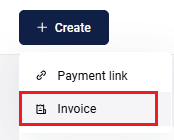
To invoice a customer and send them a link to the payment page via email, go to Pay by link section of the Personal Area. You also may open this section by clicking Create at the top of Personal area and selecting Invoice.
The page for entering the invoice parameters will be displayed:
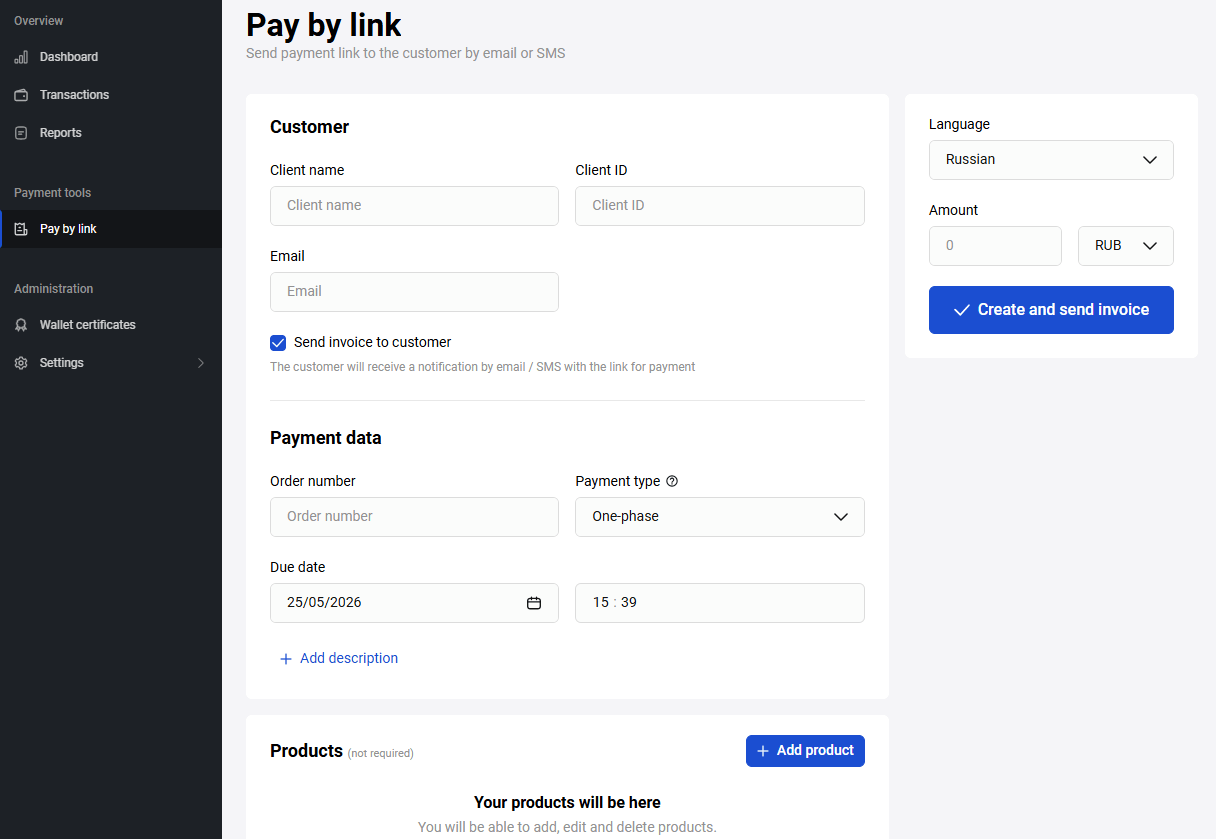
Configure the settings referring to the table below.
| Setting | Description |
|---|---|
| Client name | Client's first name, last name, and patronymic. The data entered in this field is displayed in an email containing a link to the payment page |
| Client Id | Client ID in the Partner's system. This value is used for creating stored credentials |
| The e-mail address to which the payment link will be sent | |
| Send invoice to customer | If the flag is set, the order is created without sending an e-mail to the client |
| Order number | The order number in the store's system |
| Payment type | Choose from two options.
|
| Due date | Indicate the date and time by which the payment can be made. After this date and time it will be impossible to pay the invoice |
| Description | Free-form description of the payment |
| Language | Select language from a drop-down list |
| Amount | Enter the payment amount here. If the order contains a shopping cart, the field value is populated automatically |
Click the Create and send invoice button.
Upon successful dispatch, a link to the payment form will be displayed below:
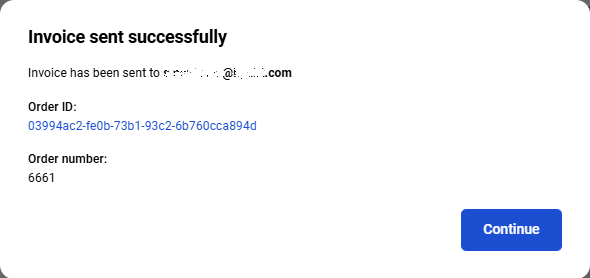
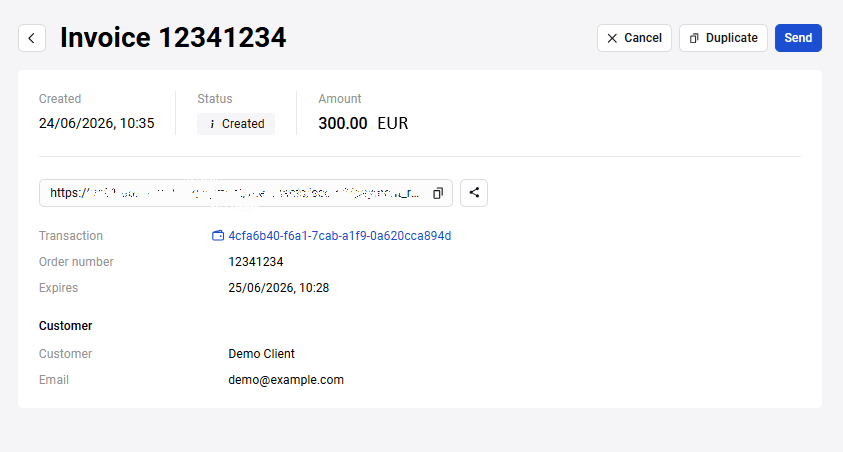
Click Continue to open the transaction details page. You can view the payment page sent to the customer by following the link displayed in the Invoice field in the transaction details page.
Adding a shopping cart to invoice
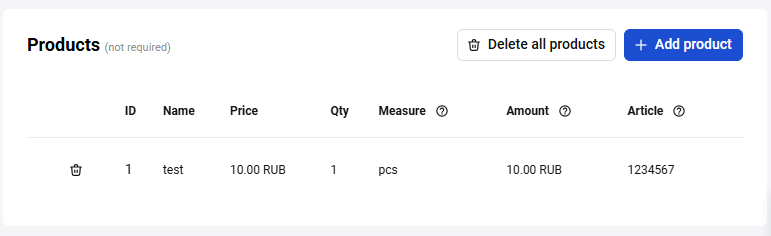
When generating an invoice you can add a shopping cart for the order. The Cart section is located under the area for creating a link to payment page:
-
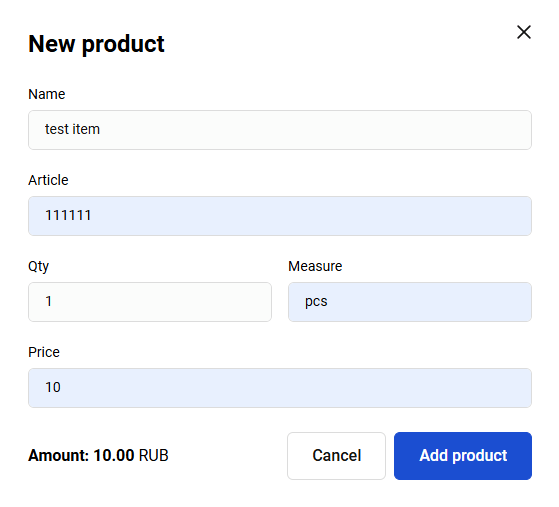
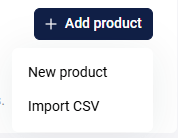
To add a line item to the shopping cart, click on the Add product button and select New product. A row with the parameters of the product being added will be displayed.
-
Fill in the required fields referring to the table below.
Field Description Name Product/service name. Article The vendor code of the line item. Qty The number of units of the product. Measure Units of measurement, for example: L – liters, pcs. – pieces. Price Price of one product unit. Amount The total amount for specified line item. Calculated automatically when the Price and Qty fields are filled out. Repeat the steps 1-2 for each item in the shopping cart.
Having added all items to the shopping cart, invoice the client.
Importing a CSV file
You can register an order (invoice) with a shopping cart and this cart can be populated automatically from a CSV file. To upload cart automatically, click on the Import CSV button. In the window that opens, select the file to be uploaded on your device.
You can upload two types of files that can contain:
- only cart data (ORDER_BUNDLE)
- cart data (ORDER_BUNDLE) and order data (ORDER_PARAMS)
Please note, there are no mandatory fields and only certain fields can be mapped.
Possible cart data fields:
-
ItemCode- product code in the merchant system. -
Price- price per unit of a product item. -
Amount- payment amount in minimum currency units. Up to 12 symbols. -
Measure- units of measurement, e.g.: l - liters, pcs. - pieces. -
Quantity- the total number of product items of one PositionId and its measure. The description of its attributes is presented below. Name- name or description of the item or service.-
TaxType- VAT rate, the following values are allowed:-
0– no VAT; -
1– 0% VAT; -
2– 10% receipt VAT rate; -
4– 10/110 VAT estimated rate; -
6– 20% receipt VAT rate; -
7– 20/120 VAT estimated rate; -
10– 5% receipt VAT rate; -
11– 5/105 VAT estimated rate; -
12– 7% receipt VAT rate; -
13– 7/107 VAT estimated rate.
-
TaxSum- tax amount calculated by the merchant. The amount is specified in minor denomination.-
PaymentSubject- sign of the subject of settlement, available values:-
1- commodity; -
2- excisable goods; -
3- work; -
4- service; -
5- gambling bet; -
6- gambling winnings; -
7- lottery ticket; -
8- lottery winnings; -
9- provision of rd; -
10- payment; -
11- agency fee; -
12- composite item of settlement; -
13- other subject of settlement; -
14- property right; -
15- non-operating income; -
16- insurance premiums; -
17- trade levy; -
18- resort fee; -
19- pledge.
-
-
PaymentMethod- payment type, the available values are:-
1- full prepayment; -
2- partial prepayment; -
3- advance payment; -
4- full payment; -
5- partial payment with further installment payments; -
6- no payment with further installment payments; -
7- payment with further installment payments.
-
CountryCode- two-letter country code.Excise- the amount of excise tax — decimal number with two digits after the decimal point.DeclarationNumber- the number of customs declaration.
Possible order data fields:
-
OrderNumber- order number (ID) in the merchant's system, must be unique for each merchant. -
TotalAmount- order amount plus fee, if any. -
Merchant- merchant login in the payment gateway. -
Currency- ISO 4217 encoded currency key. -
Language- ISO 639-1 encoded language key. If the language is not specified, the default language specified in the store settings is used. -
AuthType- Authentication type, possible values:0-PURCHASE,1-PRE_AUTH. -
Email- customer's email address. -
Phone- customer's phone number. -
Full name- customer's full name. -
INN- TIN. -
Passport- passport data. -
Sender- sender's email address. -
Description- Order description. -
ClientId- Customer number (ID) in the merchant's system — up to 255 characters. -
Payment period- set the date and time before the order is paid. For example, 5D– 5 days, 22H – 22 hours, 10M – 10 minutes.
Example with cart data:
ItemCode,Price,Amount,Measure,Quantity,Name
1,10,20,pieces,2,applesImportant: To ensure proper file processing, please make sure to avoid including commas within field values. Commas should only be used to separate fields and their corresponding values.
Making a test transaction
You can test the payment process on behalf of the client. To do so:
- Create an invoice for the client.
- Go to the payment page by clicking on the Open link to payment page button in the invoice-issued-successfully message.
- Enter the details of one of the test cards.
-
Select Save my card to store the credential. Make sure to set the Client Id at the link creation stage for the payment data to be saved.
When the stored credential is created, the next time the client with the same Client Id can choose to pay with a saved card: in the Card for payment drop-down list on the payment page they can select the card instead of entering card details.
Click the Pay button. To confirm the transaction, use the 3-D Secure code specified for the test card.
Payment links
Payment links redirect the customer to the payment page.
Create a payment link
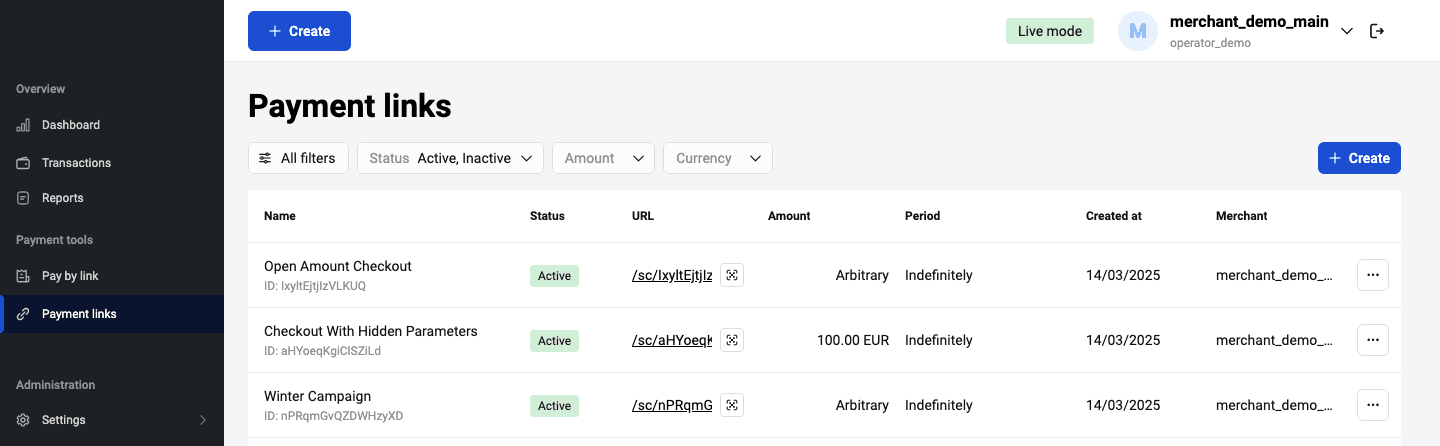
To create a link to a payment page, log in to your Personal Area, select the Payment Links section in the left sidebar, and then click Create payment link.
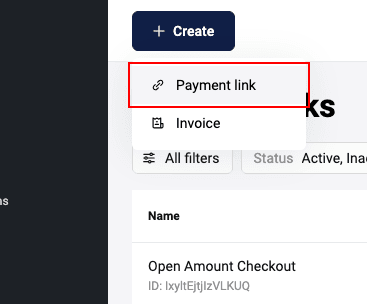
You can also create a payment link by clicking Create at the top of the page and selecting Payment link.
This will display a form for you to fill out:
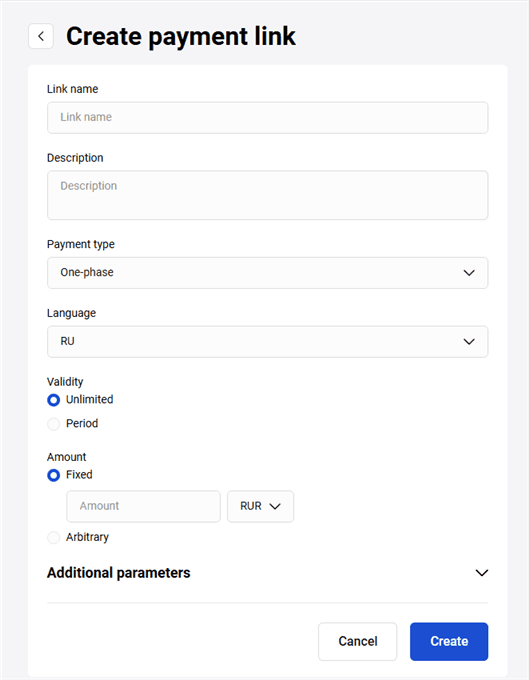
Fill in the required fields according to the table:
| Required | Field | Description |
|---|---|---|
| Mandatory | Link name | The name of the link, which is only available to the Partner. |
| Optional | Description | Description of the order, which is displayed on the payment page. |
| Optional | Payment type | Payment transaction type. Available values: One-phase, Two-phase. One-phase payment is selected by default. For this field to appear, two-phase payment must be enabled (contact support if you need it). |
| Optional | Language | Language of the payment page. |
| Optional | Validity | The default setting is one month from the current date. You can set a different interval: to do this, click Period and select the required start and end dates of the link from the drop-down calendar. If the Unlimited field is enabled, the dates are not available for editing. Note that in the Payment service you cannot limit the number of payments by the link: this is the Payment service's difference from Payment gateways. |
| Mandatory | Amount | Enter the payment amount. If you click on "Arbitrary", the customer can specify the amount for payment on the prepayment page. |
| Optional | Currency | It is set by default, the value is set according to the Partner's settings. |
Fill in additional parameters if needed.
| Field | Description |
|---|---|
| Address | Whether or not to display the delivery address field on the pre-payment page. |
| Whether or not to display the field for entering the customer's e-mail on the pre-payment page. | |
| Full name | Whether or not to display the field for entering the customer's name and surname on the pre-payment page. |
| Phone | Whether or not to display the field for entering the customer's phone number on the pre-payment page. |
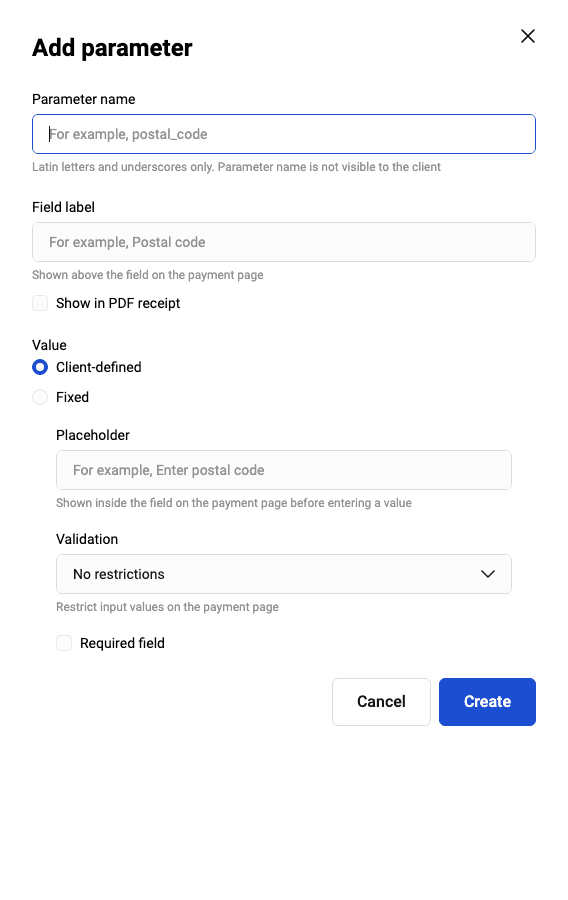
It is possible to add your own parameters. To do this, click +Add parameter and fill in the fields:
| Field | Description |
|---|---|
| Parameter name | The name of the parameter that the customer sees. |
| Field label | Required for the Payment service. Only Latin characters and underscores are allowed. For example: size, items_count, etc. |
| Show in PDF receipt | A checkbox to be checked if the new parameter should be displayed in PDF receipt. |
| Value | Pre-filled data in the field. If you select Client-defined, specify the text to be shown inside the field in the Placeholder field, and select restrictions for the value in the Validation field (no restrictions, digits only, or a regular expression). If you select Fixed, specify the value, and the customer will not be able to change the value. |
| Required field | A checkbox to be checked if the new parameter is mandatory for the customer. This checkbox is available if Client-defined value is selected. |
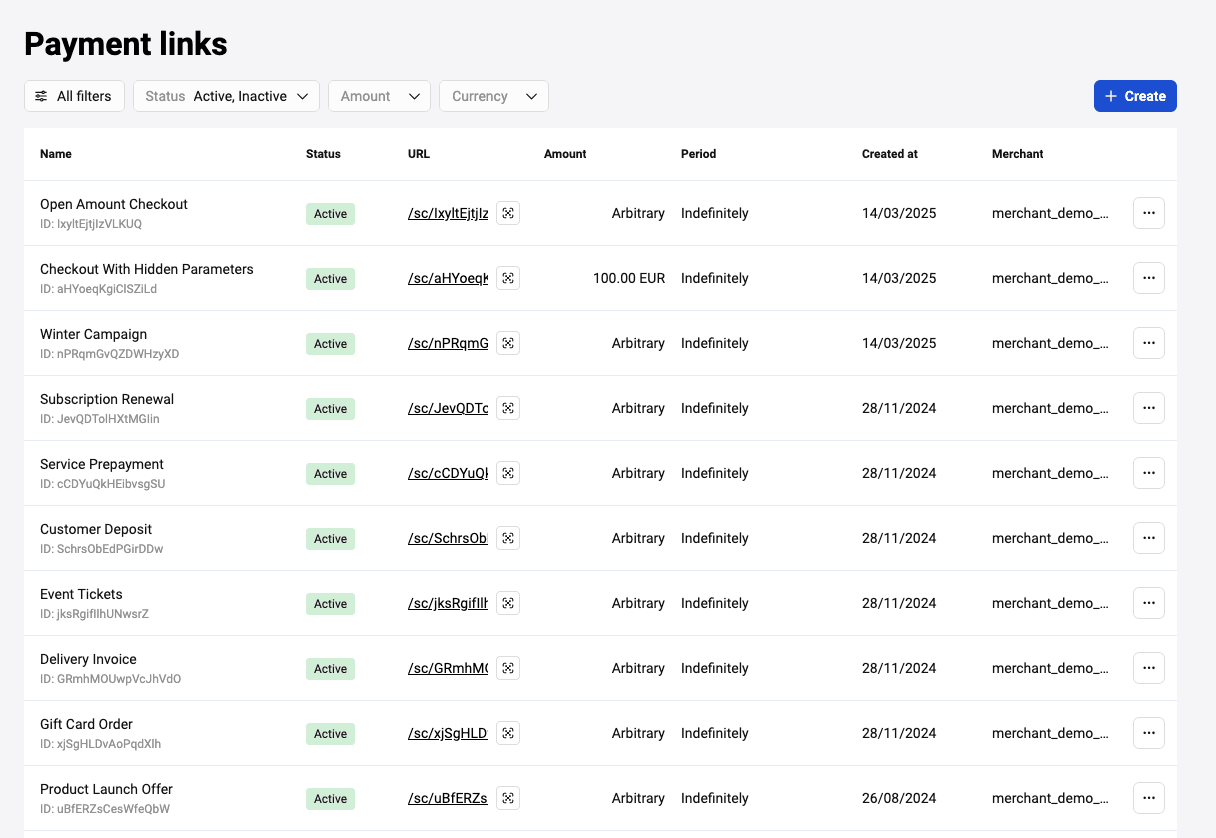
After filling in all the required fields, click Create at the bottom of the form. After that the link will be displayed on the main page with the status Active:
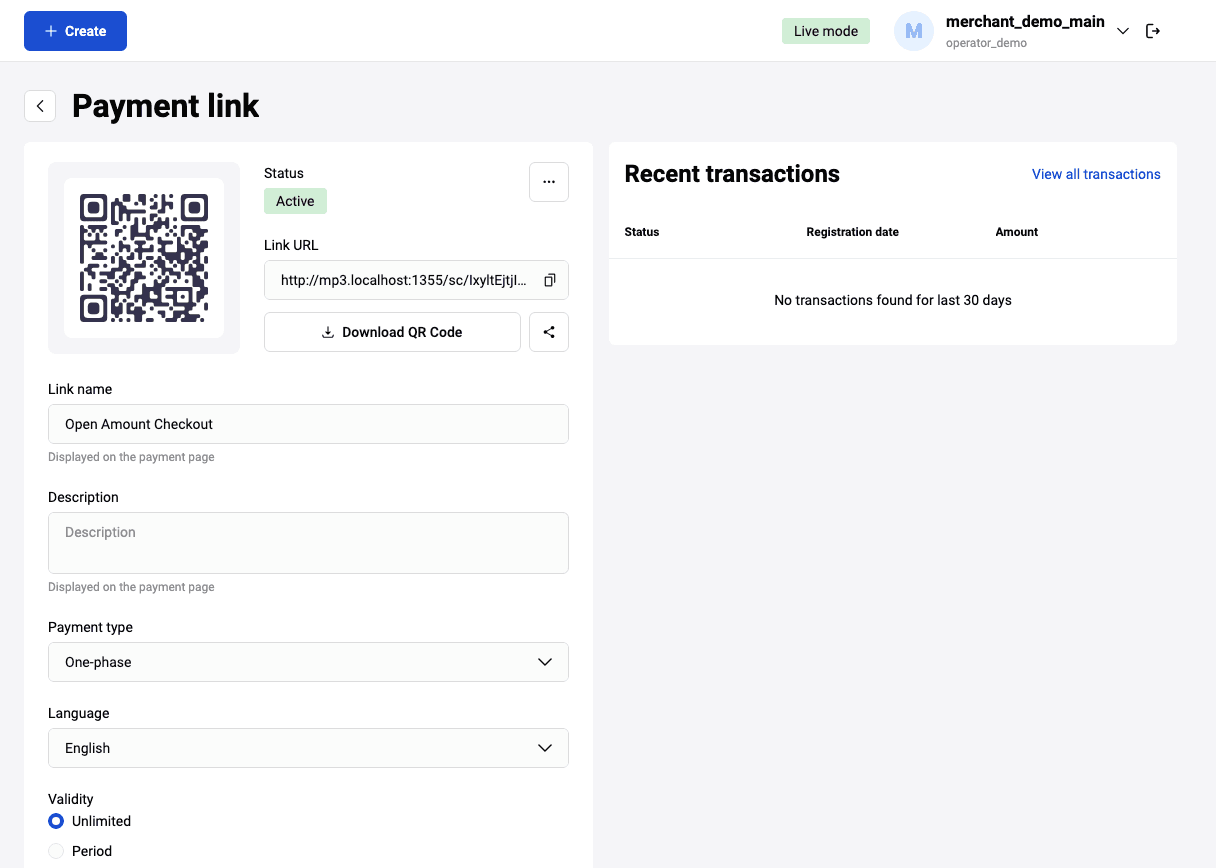
Possible actions with the payment link template
The possible actions are available by clicking on the  icon.
icon.
-
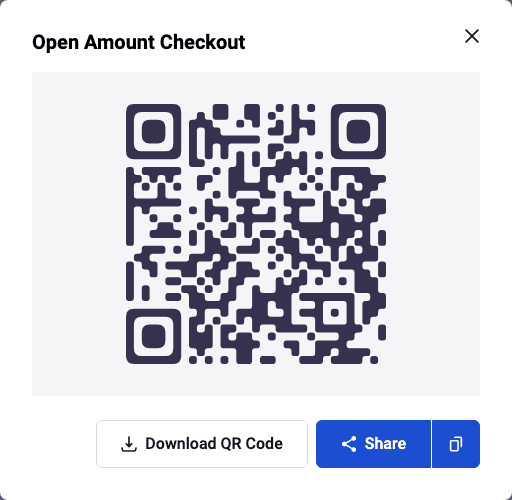
Share — by clicking this button, you will be able to share a link in other applications.
- Copy link — after you click on the appropriate icon a notification appears that the link has been successfully copied.
- Download QR code — you can view the generated QR code and download it in one of available formats (PNG/SVG/JPEG).
Additionally you can do the following:
-
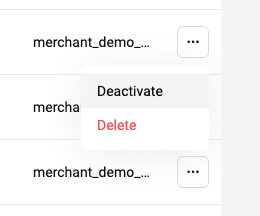
Activate/deactivate or delete link — click the icon with three dots in the link bar.
-
Edit link — Click the link to view or edit its details. In addition, all the actions described above are available when viewing the template link. To perform the necessary actions, click the button with the same name as the action.
-
Filter — to form a different sample of payment links, select other filters on the Payment link page. To add more filters, click More filters button. The page for selecting filters will open:
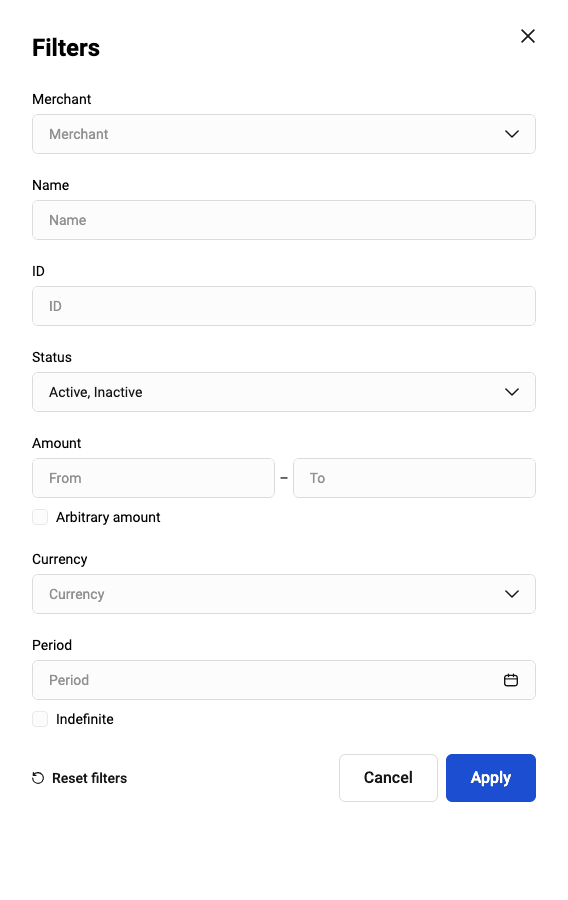
Select the required search criteria and click Apply in the filter window. To clear all filter fields, click the Reset filters button.
You can search by the following parameters:
- Merchant — if necessary, select the Partner's account from the list of available merchants whose payment links are to be sampled.
- Link name — name of the link you set during link's creation;
- Link status — three link statuses are possible: Active/Inactive/Deleted. Note that deleted links are not displayed in the table unless the Deleted status is explicitly selected in the filter.
- Currency — choose a currency from the dropdown list;
- Amount from - Amount to — Order amount (these fields are not editable if the Any amount option is activated);
- Arbitrary amount — activate the option if the amount as a search criterion is not important;
- Period — the validity period set for the link. Click on the dates and select the start date and the expiration date in the calendar (the field is not editable if the Indefinite option is activated).
- Indefinite — activate the option if the validity period of the link as a search criterion is not important.
- ID — identifier of the payment link template.
Pre-payment/Payment page
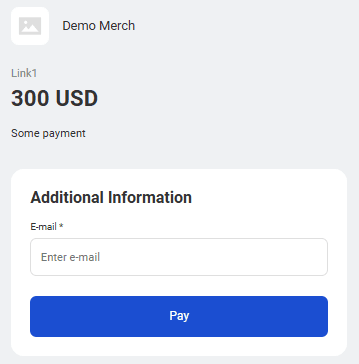
If additional parameters were specified while creating the link (E-mail/Full name/Phone/Address) or the payment amount field was left blank, the client should fill in the required field(s) on the prepayment page when opening the generated payment link and only then proceed to the payment of the order. An example of the pre-payment page with an additional parameter:
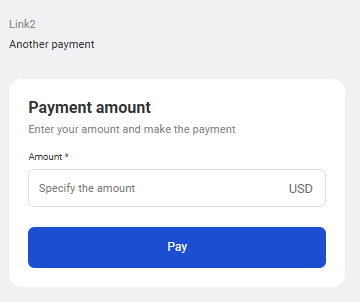
An example of a pre-payment page with an order amount without additional parameters:
The payment page is the same as when paying via API.

Working with transactions
The Transactions page contains detailed information about orders and payments. To go to the page, click on the  icon in the navigation bar to the left.
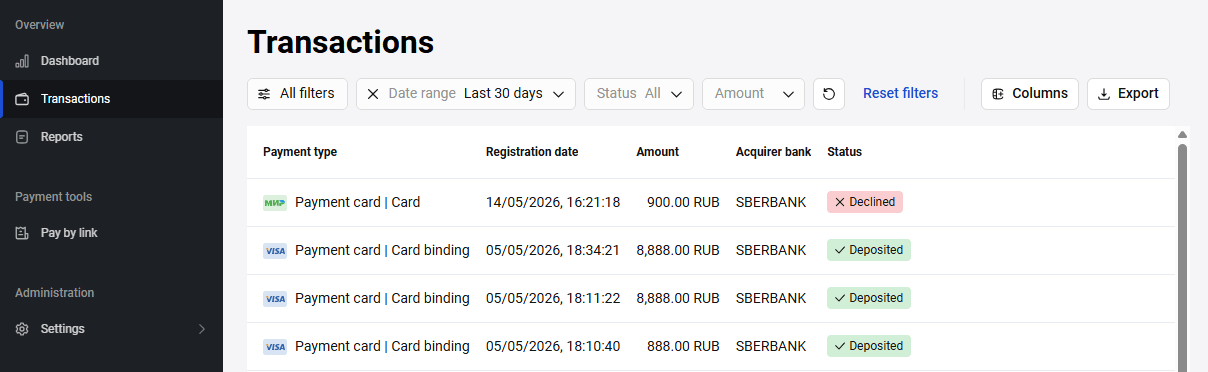
The left-hand side of Transactions page contains the search area where the filter can be set. The list of transactions that meet the search criteria is located on the right side of the page.
Using the transactions filter
To work with transactions, you must first define and apply the filter settings.
To set search criteria for transactions, follow these steps.
- In your Personal Area, go to the Transactions page.
- In the search area on the Filters tab set the required parameters and click on the Apply button. Matching transactions will be displayed in the area to the right.
Transaction filter parameters
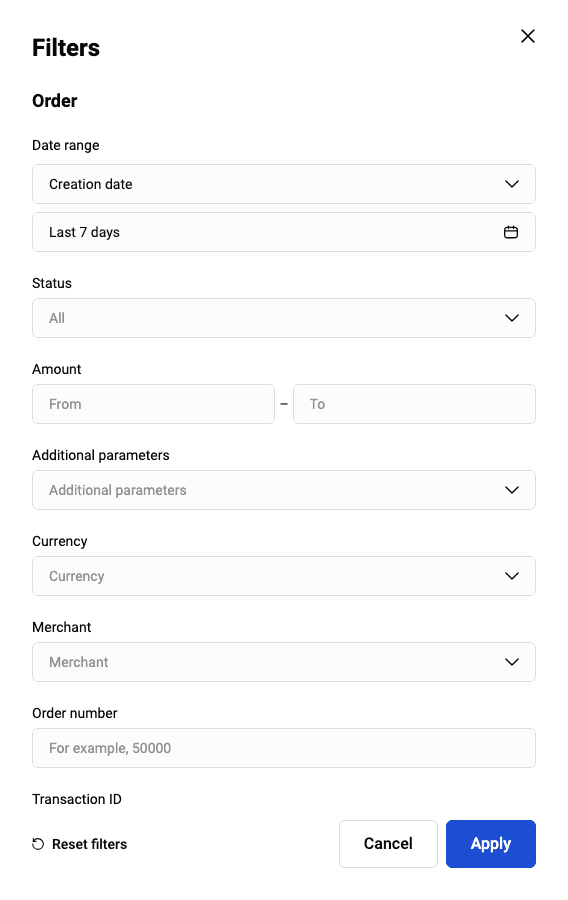
The filter allows you to set the criteria for selecting transactions.
-
Date range - In the first drop-down list, specify by which kind of date the selection should be made. For example, Creation Date. In the second drop-down list, specify the type of time interval:
-
Date range – allows you to set the time interval by selecting the start and end dates in the calendar.
-
Period – allows you to choose the recent period over which the transactions will be shown: day, week, month, or year.
-
Date range – allows you to set the time interval by selecting the start and end dates in the calendar.
- Amount - The order amount. Specify the upper and lower bounds for the range.
-
Status - Order status. The following statuses are available (multiple choice):
-
Created. Invoice is issued but has not been paid yet.
-
Approved. Invoice paid. Funds are reserved on payer's account.
-
Deposited. Funds are charged from payer's account.
-
Reversed. All funds are returned to payer.
-
Declined. Invoice issued but expired without payment.
-
Refund. There had been a partial refund.
-
Created. Invoice is issued but has not been paid yet.
- Order number - The number automatically assigned to the order in the store. If you need to find a specific order, indicate its number here.
- Merchant login - Merchant login in the Payment service. Enter your login (displayed in the upper right corner).
Last 4 digits of the payment card - The last four digits of the payer's card number used to pay for the order. If you are looking for transactions made with a specific card and you know its number, enter the last four digits here.
Payment way - Selects the ways of payment that was used to pay for the order. Possible values include Payment card, Mir Pay, etc.
See description of other search criteria here.
Transaction filter settings
Transaction filter settings are located in the Search area of the Transactions page. In this section, you can set which fields will be displayed as the transaction filter criteria ...
Transaction filter templates
To make working with transactions more convenient, you can save a set of filter settings that you constantly use as a template.
To create a template, follow these steps:
- Set and apply the transaction filter criteria.
- Click on the Save as a template button.
To use a saved template, follow these steps:
- While on the Transactions page, in the Search area, go to the Templates tab.
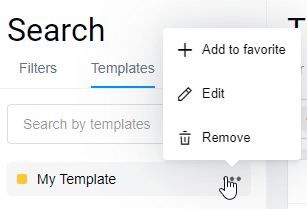
- Click on the required template in the list. The filter settings saved in the template will be applied.
Transactions table
The transactions table is on the right side of the Transactions page. Transactions appear in the table after the filter is applied.
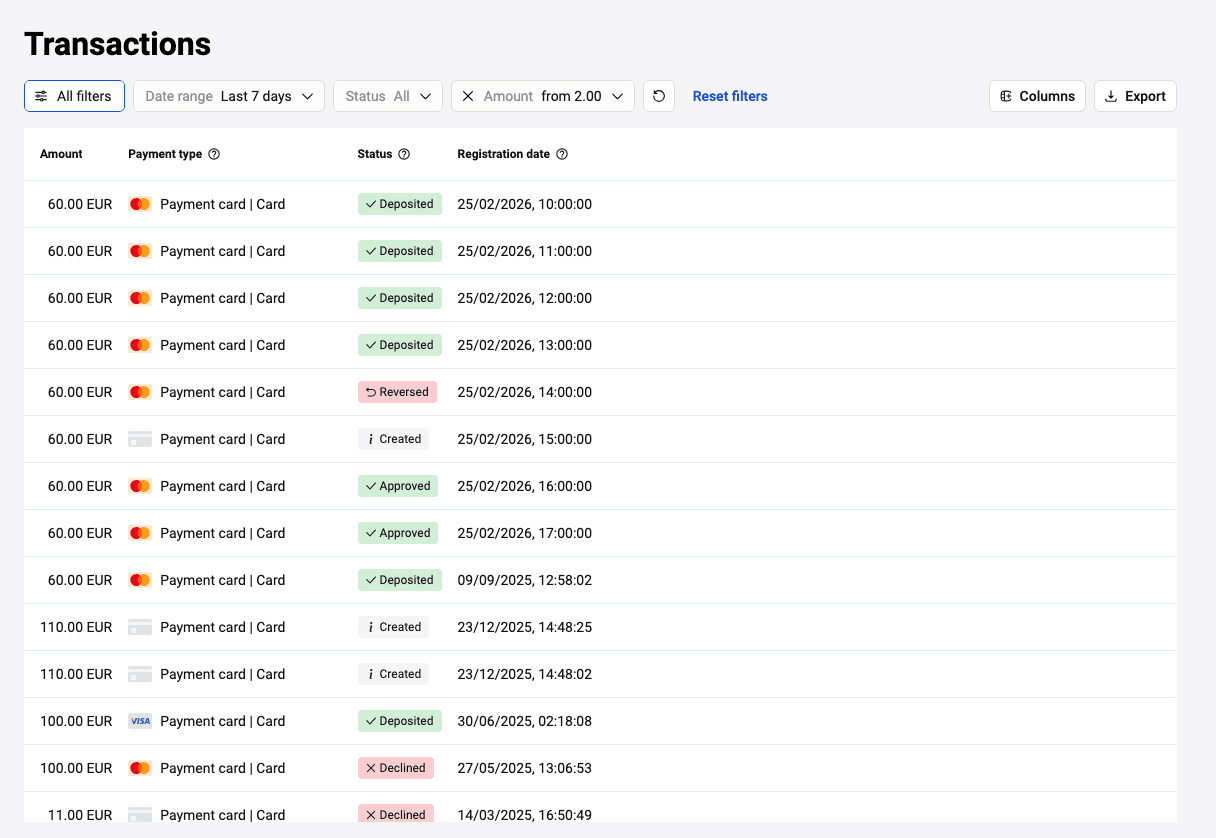
By default, the table contains the following columns with transaction attributes:
Payment type Means of payment used to pay for the order.
Date The date the transaction was registered.
Amount The order amount.
Exporting transactions
In some cases you may need to export your transactions. Two formats are available: XLS or CSV. To do so:
- Find the desired transactions by specifying the search criteria in the filter.
- Click the Export button and choose one of the two formats suggested for saving: CSV or XLS.
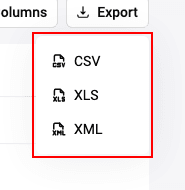
- The report generation process will start. Depending on the settings of your browser, either the report file will be downloaded automatically or a dialog box will appear allowing you to choose a location where to save the report file.
Transaction information
Personal Area provides detailed information about each payment.
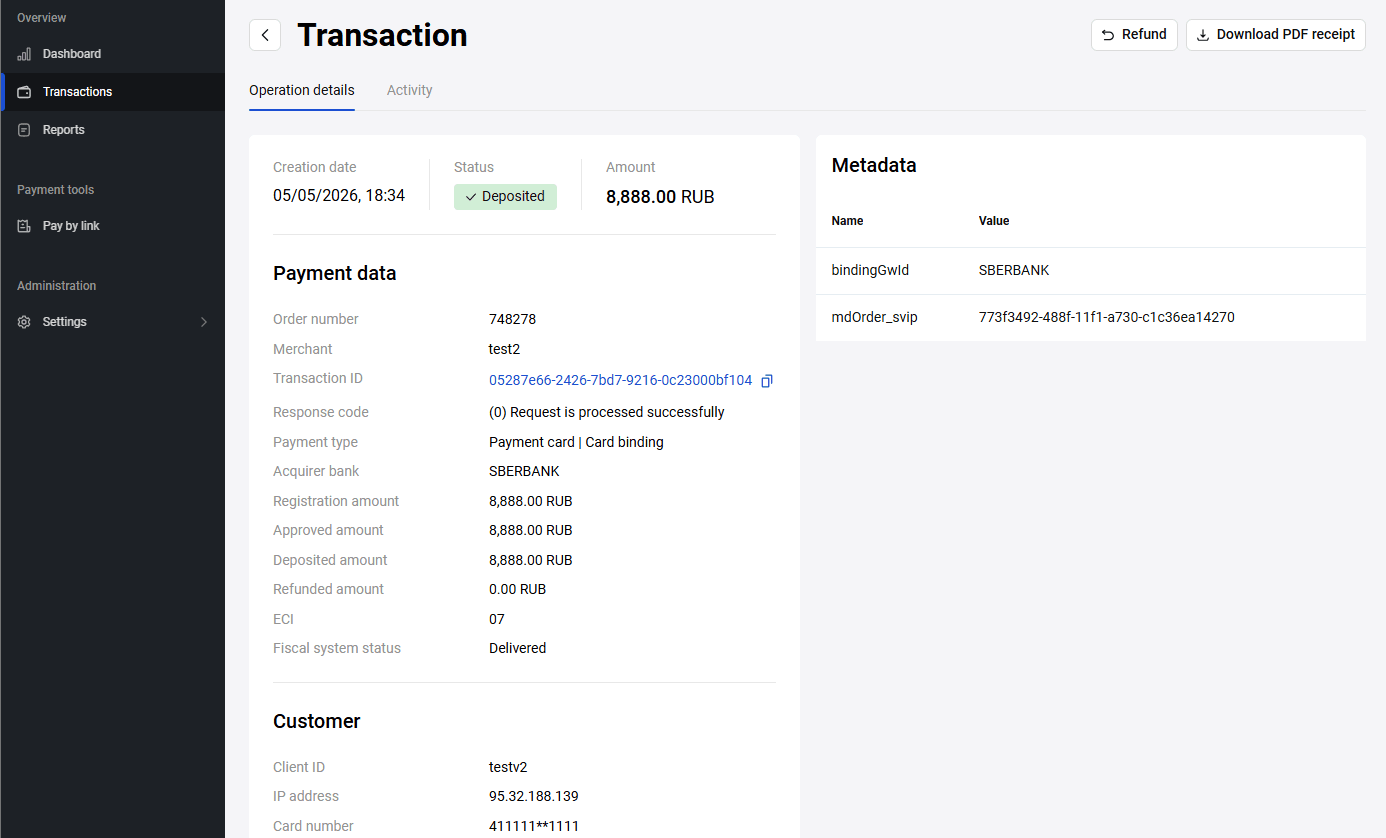
To learn more about a payment, while on the Transactions page, click on the row of respective transaction in the table.
The Transaction information page will open. It always contains the Operation info and History tabs. For transactions of certain types, the Cart and Refund tabs can be displayed in addition.
Also, depending on the status and type of transaction, the Complete and Refund buttons may be present on this page.
The Complete button is used to confirm two-phase payments from clients. This button is active only when the order is in the Approved status.
The Refund button is used to return the payment to the client. The functionality of the button depends on the status of the order and whether a shopping cart was used or not.
- In case of orders with a shopping cart in the Deposited status, the Refund button opens the Refund tab, where you can select line items to be returned or refund the entire amount of the order.
- In all other orders, the Refund button opens a refund window, where a monetary amount is indicated.
Operation details
The transaction details are shown on the Operation details tab which contains the following sections:
- Operation details. This section shows the attributes of the transaction.
- Payer information. Here you can find information about the card and the payer.
- Additional parameters. Some additional technical details.
Fields in the Operation details section:
| Field | Description |
|---|---|
| Order number | Order number in the store system. |
| Unique order number | Order ID in the Payment Gateway. |
| Response code | A numeric code of a result received from a processing bank (action code). See the list of action codes here. |
| Payment type | Means of payment used to pay for the order. |
| Bank fee amount | The amount of the acquirers fee (if charged). The field may be hidden if no data of the fee is found. |
| Registration amount | The order amount. |
| Deposited amount | The amount that was actually debited. |
| Refund amount | Refund amount, if a refund was made. |
| Creation date | Date and time of order creation. |
| ECI |
Electronic Commerce Indicator. Possible values are:
|
| Order description | Arbitrary description of goods and services |
Fields in Payer information section:
| Field | Description |
|---|---|
| Card number | Masked number of the card used for payment. |
| IP address | IP address of the payer. |
| Expiry | The payer's card expiration date. |
| Payment system | The name of the International Payment System (card network) to which the payer's card belongs. |
| Cardholder name | Cardholder name used for payment. |
| Payer's e-mail address. |
History
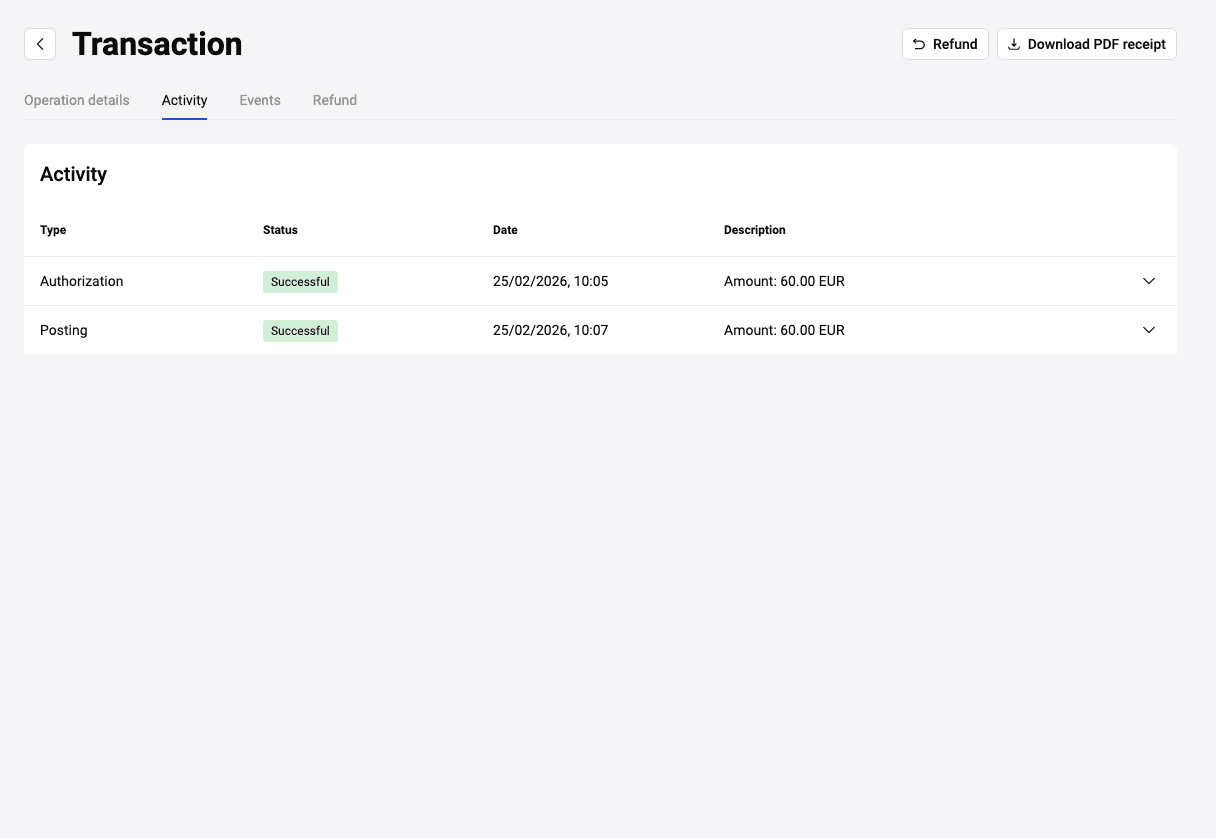
The History tab contains information about all events relevant to the order: payments, refunds, etc.
| Column | Description |
|---|---|
| Operation type | Operations made while working with an order. |
| Date | Date and time when the operation was made. |
| Description | The order amount. |
Cart

The Cart tab contains information about goods and services paid for in the transaction.
| Column | Description |
|---|---|
| ID | Number of a line item in the cart. |
| Name | The name of the line item. |
| Article | Alphanumeric ID of a line item (vendor ID). |
| Price | Price of one product unit. |
| Qty | The quantity of the line item. |
| Amount | The total amount for specified line item (calculated automatically). |
| Refund | Refund amount. Displayed only if there was a refund. The  icon in the row means that there was a partial refund. icon in the row means that there was a partial refund. |
Refund
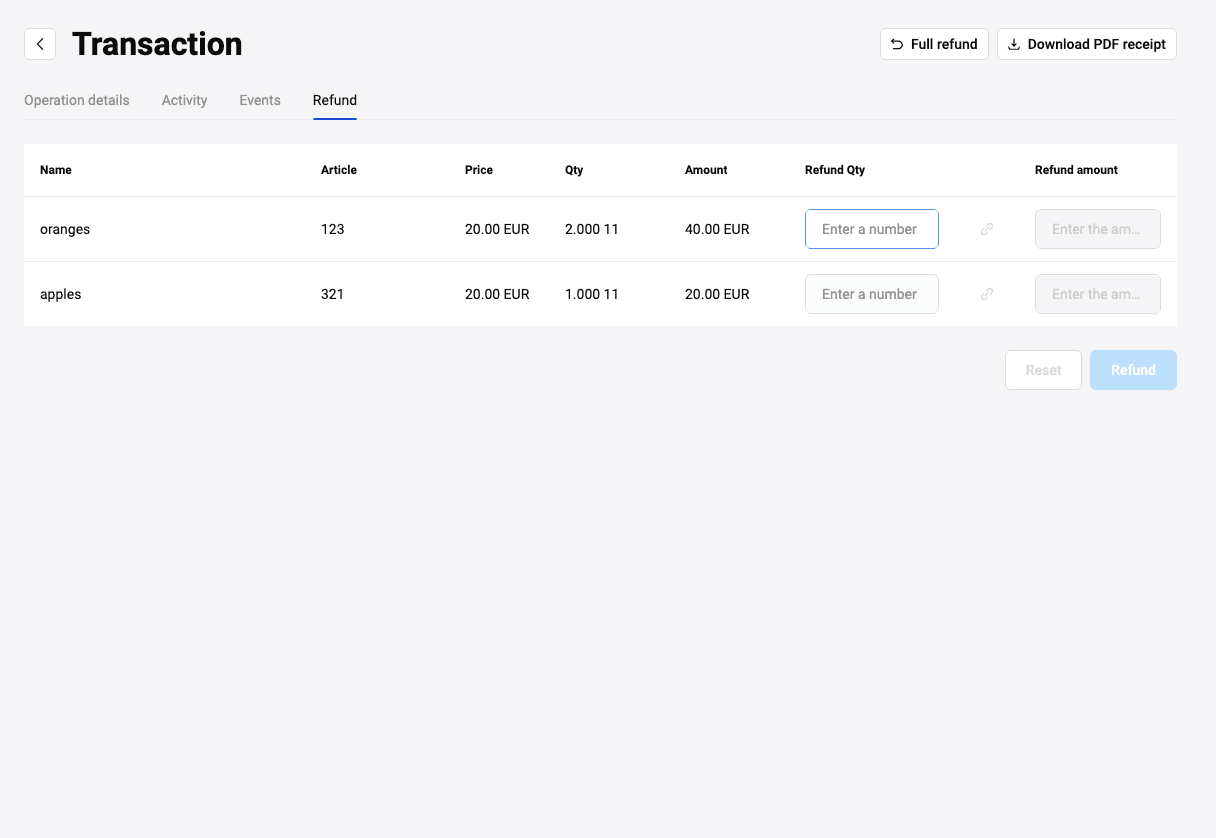
The Refund tab contains information about line items in the order and allows making a refund to the payer. The refund can be made for the full amount or for specific line items.
Full refund
To issue a full refund to the payer for the order, follow these steps:
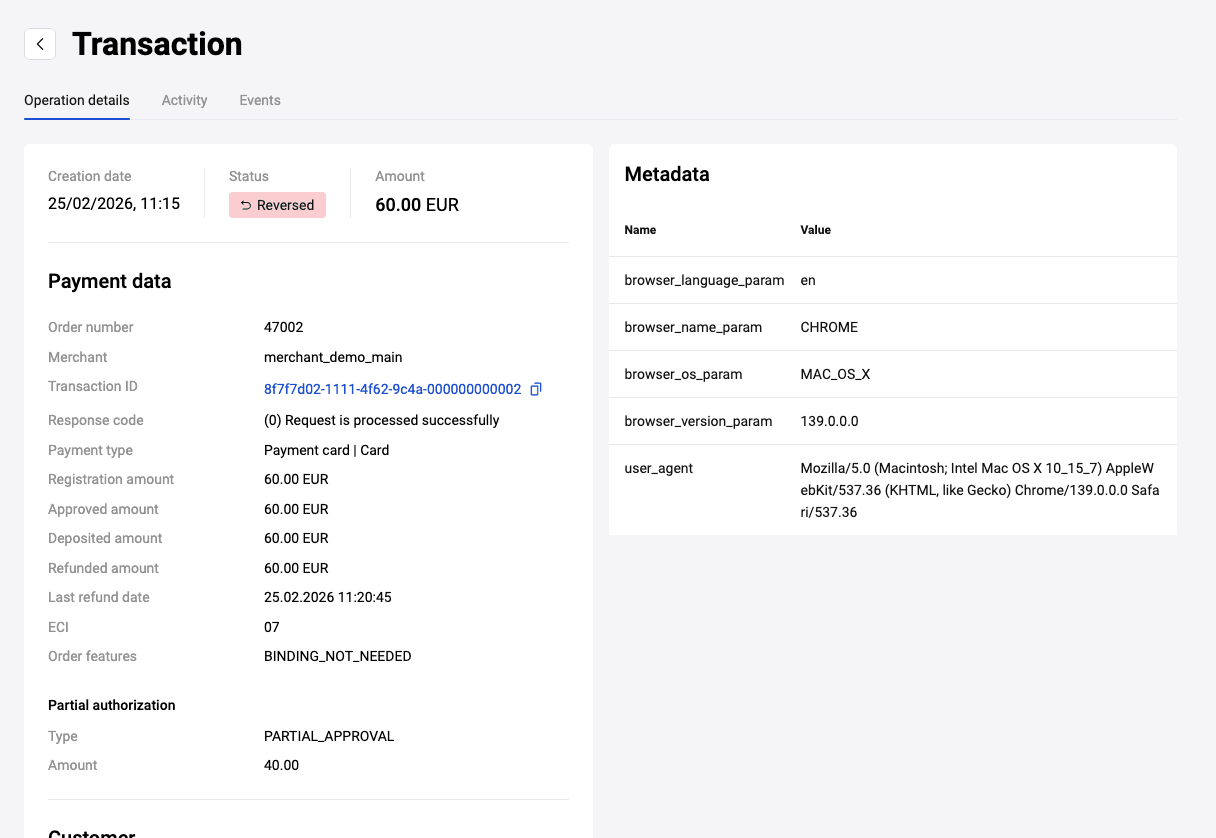
While on the Refund tab, click on the Full refund button. The order status will become Reversed or Refunded, depending on the payment stage and the date the refund was processed:
Refund for specific items
To issue a refund for specific items, follow these steps:
-
While on the Refund tab, use the table with content of the shopping cart.
Column Description ID Number of a line item in the cart. Name The name of the line item. Article Alphanumeric ID of a line item (vendor ID). Price Price of one product unit. Qty The quantity of the line item. Amount The total amount for specified line item (calculated automatically). The qty of refund The number of items to be returned. Refund amount The amount to be refunded. The field is calculated automatically. In The qty of refund field, indicate the number of items for which the refund should be issued. The resulting amount will be populated in the Refund amount field.
-
Click on the Refund button.
If the refunded amount is less than order amount, the order status will become Refund. If the refund is for full amount, the order status will become Reversed.
Reversal, refund, completion of payment
The main operations that can be carried out with transactions in the Personal Area are:
These operations are invoked by corresponding buttons on the Transaction information page. See the detailed description of each operation below.
Order cancellation
Usually an order that is neither paid nor pre-authorized is automatically cancelled after a certain time set in the system, for example, after 20 minutes. But this operation can be performed manually from the merchant's Personal Area.
If you want to cancel an order before payment or pre-authorization, you can do it by clicking the Decline button on the Transaction information page.
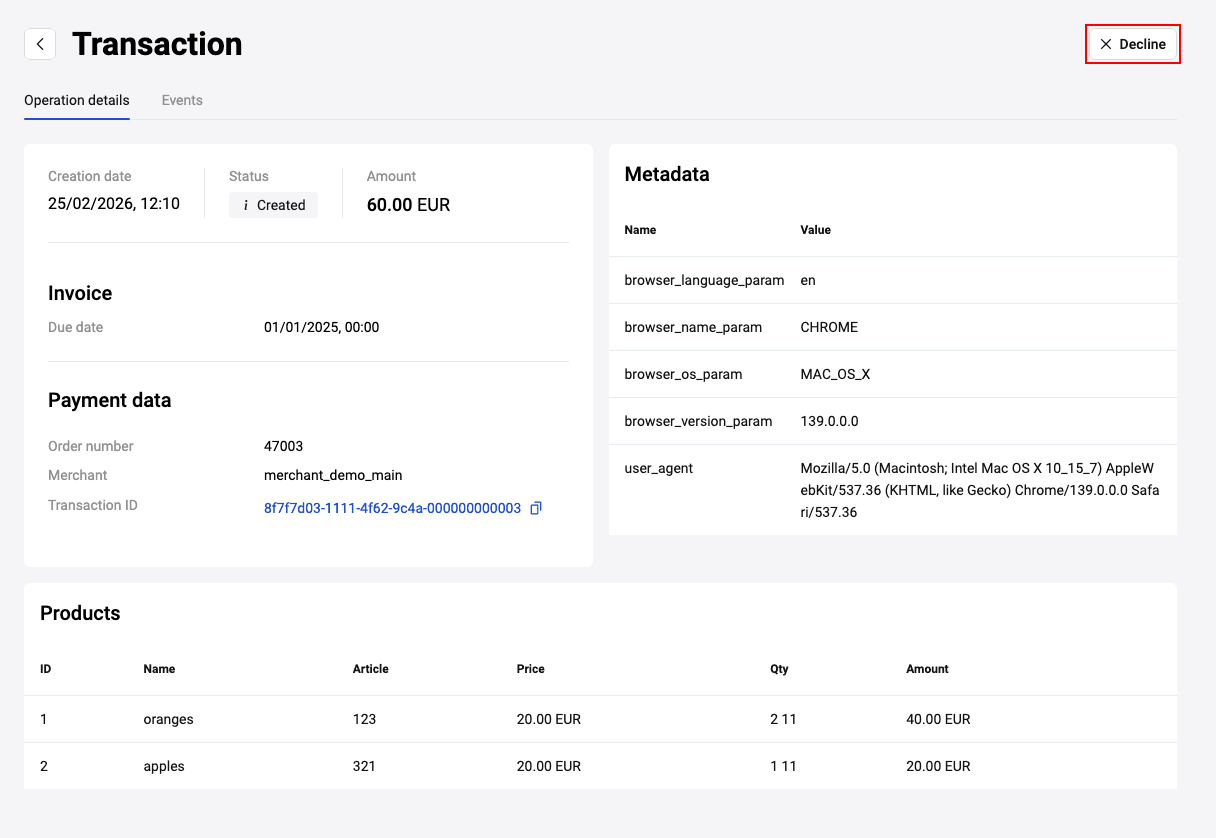
After cancellation, the order gets the Declined status.
Order completion
In case of a two-phase payment, the funds are first reserved on the client's account (order status is Approved) and only then are credited to the merchant's account (order status is Deposited). It is possible to configure that the final transfer takes place automatically after a certain time set in the system, e.g. after 24 hours. But this operation can be performed manually from the merchant's Personal Area.
To complete a transaction, while on the Transaction information page, click on the Complete button.
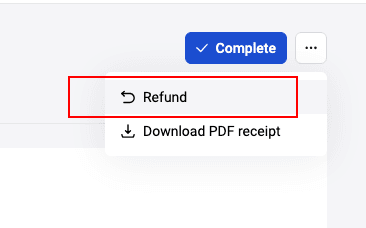
A confirmation window will open. Its appearance is shown below and depends on whether the cart was used in the order or not.
If the cart was NOT used, the confirmation window looks like this:
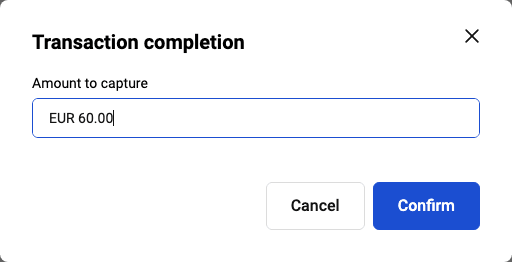
Check the value in the field and click on the Confirm button.
If the cart was used, the confirmation window looks like this:
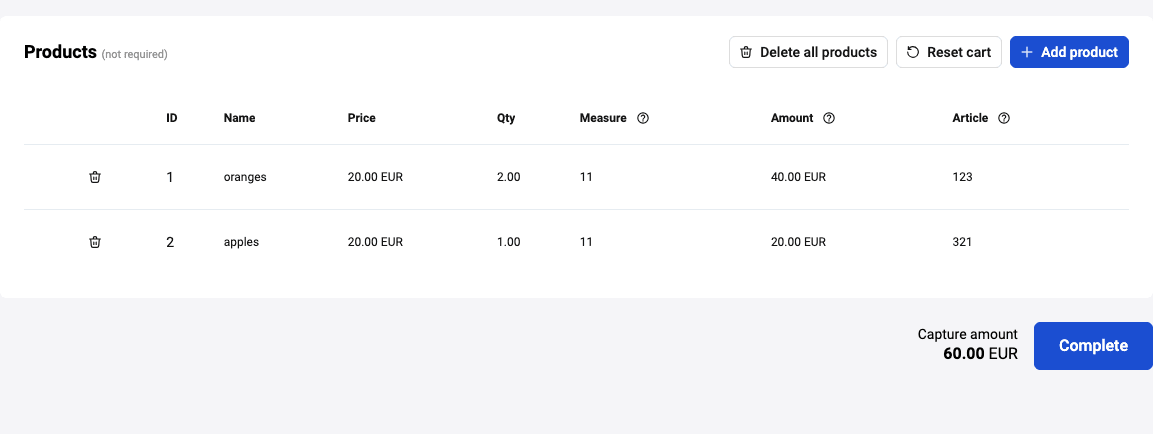
Check the data, change it if necessary and click on the Complete button. After the completion, the order gets Deposited status.
If there are necessary permissions, you can adjust the shopping cart in a way that the completion amount will exceed the pre-authorization amount. The percentage by which the deposit amount may be exceeded can be set to any value - it is determined by a specific setting. To activate this feature, please contact technical support.
As an example, let's say the percentage by which the deposit amount may exceed is set at 100% in the settings. You have entered an amount of 910 RUB in the order registration request. Then you can modify the cart so that the capture amount does not exceed 1820 RUB. If it does exceed, an error message will appear and the Complete button will become disabled.
Reversal
From your Personal Area, you can reverse payments for two-stage transactions in Approved status (when the funds are reserved on the client's account but not deposited yet). Reversal means that the transaction is canceled and all the reserved funds are released.
To make a reversal, while on the Transaction information page, click the Reverse/Refund button.
The functionality of this button depends on the status of the order and whether a shopping cart was used or not. If the order status is Approved (with or without shopping cart), this button allows to reverse the whole amount only.
In the confirmation window, click Confirm. The order will get the Reversed status.
Refund
From your Personal Area you can issue full or partial refunds on orders paid by customers (when the order status is Deposited). For two-phase payments, the Deposited status means that the funds held on the payer's card have already been debited.
Refunds are issued from the Transaction information page by using the Reverse/Refund button.
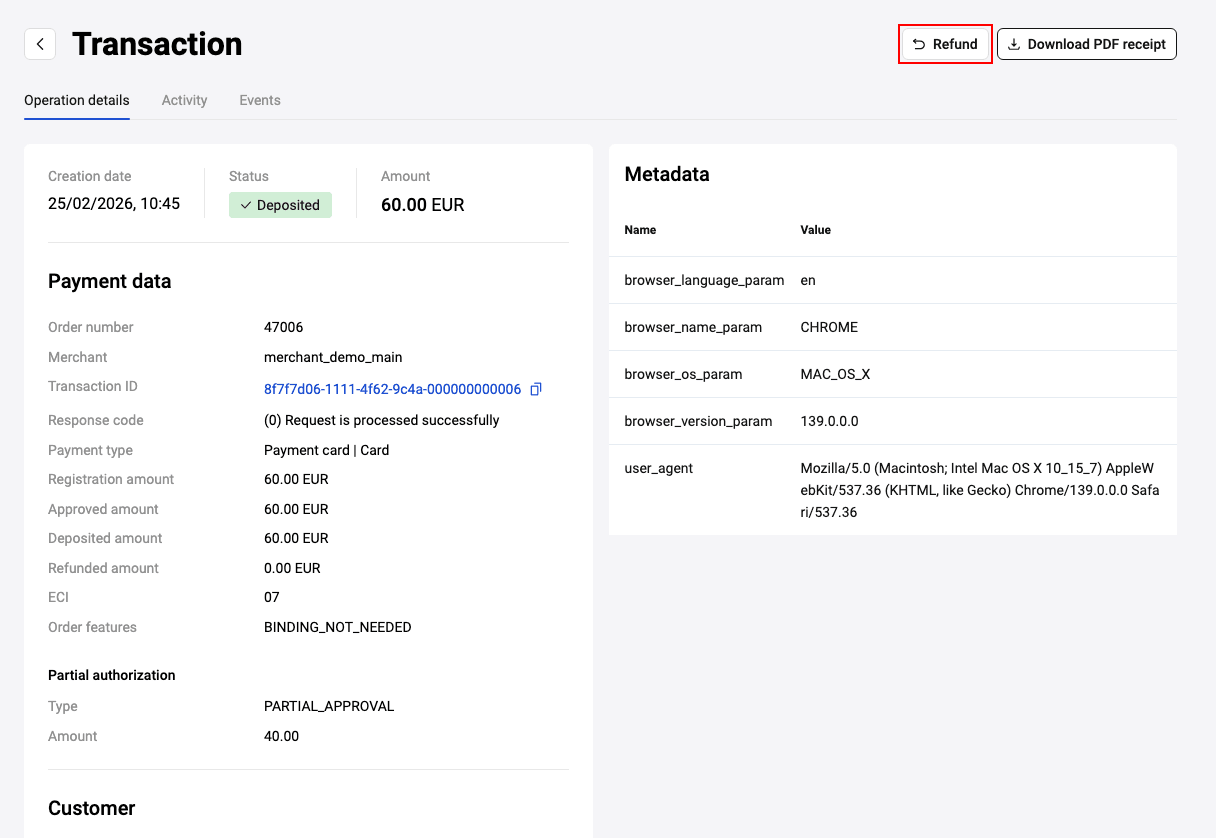
The functionality of the button depends on the status of the order and whether a shopping cart was used or not.
- In case of orders with a shopping cart in the Deposited status, the Reverse/Refund button opens the Refund tab, where you can select line items to be returned or refund the entire amount of the order. The refund process for such orders is described here.
- In case of orders without a shopping cart in the Deposited status, the Reverse/Refund button opens the refund confirmation window.
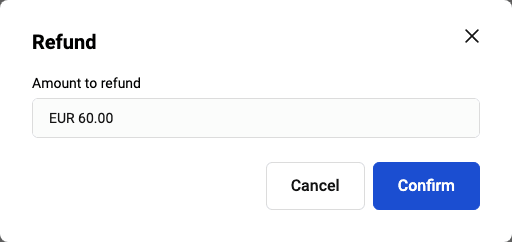
Check the data, change it if necessary and click on the Complete button. After the completion, the order gets Deposited status.
Reverse/Refund specifics depending on phases, status, and shopping cart
The table below shows all the options of Reverse/Refund button depending on the status of the payment, the number of phases in it, and whether a shopping cart is used or not. The logic can vary depending of your permissions. As a general rule, Merchant Portal makes a reversal if possible, and if not, makes a refund.
| With cart | Without cart | |
| One-phase | Deposited - refund for specific items | Deposited - refund in amount, partial available |
| Two-phase |
Approved - reversal, full amount only Deposited - refund for specific items |
Approved - reversal, full amount only Deposited - refund in amount, partial available |