
Integration via Redirect
This integration method involves the partner using a link to the payment page to redirect the client in the browser after registering the order. In this case, the partner does not need to collect or process card data on their site. The API is used minimally, so this integration method does not require extensive development expertise.
On the payment page, the client can pay for the order with a new card or use their saved payment details.
Integration Scheme
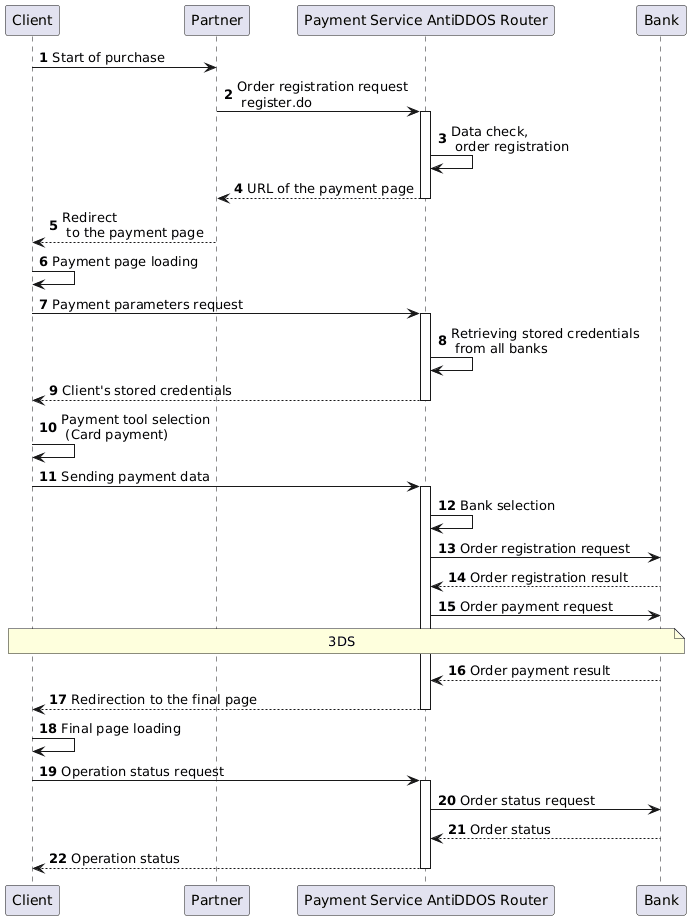
Register an order
1. The client initiates the purchase of a product or service on the Partner's website.
2. The Partner sends one of the following requests to the Payment Service AntiDDOS Router to register the order:
- register.do for single-stage payment, or
- registerPreAuth.do for two-stage payment.
More details about these payment types can be found in the section Two-Phase Payments.
Request example:
curl --request POST \
    'https://api.uat.all2pay.net/v2/register.do' \
    -H 'Content-Type: application/json' \
    --data-raw \
    '{
    "orderNumber": "order_123473",
    "amount": 1234,
    "currency": "643",
    "language": "ru",
    "returnUrl": "https://mybestmerchantreturnurl.com/success",
    "userName": "test_user",
    "password": "test_user_password",
    "clientId":"client_10001"
}'
curl --request POST \
'https://api.uat.all2pay.net/v1/register.do' \
-H 'Content-Type: application/json' \
--data-raw \
'{
"orderNumber": "order_123473",
"amount": 1234,
"currency": "643",
"language": "ru",
"returnUrl": "https://mybestmerchantreturnurl.com/success",
"userName": "test_user",
"password": "test_user_password",
"clientId":"client_10001"
}'3. The Payment Service AntiDDOS Router validates the Partner's data and registers the order.
Redirect to the payment page
4. In response to the request, the Payment Service AntiDDOS Router provides the Partner with a link to the payment page in the formUrl parameter.
Response example:
{
    "errorCode": "0",
    "formUrl": "https://router.rbsuat.com/wl/payment.html?mdOrder=2dc811e7-8d1c-407a-bd25-a4f41f96cc60&language=en",
    "orderId": "2dc811e7-8d1c-407a-bd25-a4f41f96cc60",
    "orderNumber": "order_123457"
}
5. The Partner redirects the Client to the payment page.
6. The Client navigates to the payment page.
7. The payment page requests the payment parameters from the Payment Service: stored credentials, available payment methods.
8. The Payment Service AntiDDOS Router checks for the client's stored credentials across all banks.
9. The Payment Service AntiDDOS Router provides details of stored credentials detected across all banks to the payment page. If the same card is stored in different banks, only the most "recent" stored credential based on its creation date is displayed.
10. (Optional) The client chooses a payment tool—Card Payment. The payment tool selection is available only if specific payment methods were explicitly provided in the order registration request (e.g., Alfa Pay, SberPay, etc.). By default, only card payment and stored credential are used, and the payment page immediately displays a form for entering card details or selecting a stored credential (saved card), if any exist.
Payment on the payment page with card or stored credential
11. The client inputs the card payment data (or selects a stored credential) and presses the Pay button.
The payment page view can be customized to the Partner's design. Please contact the support service for the payment page customization.
Payment without CVC
The partner can accept payments without entering the CVC code when the client is using card data or stored credentials. This will require corresponding permissions in the banks. If the partner has such permissions in some of the banks (just one or more, but not all of them), the AntiDDOS Router may require CVC entering after the client clicks the Pay button, depending on the bank where the payment will be routed.
To enable the function, contact the support service.
Payment page features
The payment page features may vary depending on the order registration request:
- The Remember card checkbox is shown only if a
clientIdwas specified when registering the order. - Only one stored credential is available on the payment page if a
bindingId(an ID of an existing stored credential) is provided in the registration request. The order can only be paid with this stored credential. - If
defaultBindingIdis passed during registration, the stored credential with this ID is selected by default in the list. However, the client can use any payment method available on the payment page to pay the order.
The Partner can also delete stored credentials via the payment page, see Deleting eCom stored credentials.
Routing of the payment
12. The Payment Service AntiDDOS Router selects the appropriate bank based on routing rules. Learn more at Payment routing.
13. The Payment Service AntiDDOS Router sends a request to the selected bank to register the order.
14. The bank provides the Payment Service AntiDDOS Router with the order registration result.
15. The Payment Service AntiDDOS Router sends an order payment request to the selected bank. If 3DS is required to complete the payment, the corresponding operations are carried out. On the confirmation page, the verification code must be entered.

16. The selected bank processes the payment operation and sends a response to the Payment Service AntiDDOS Router.
17. The Payment Service AntiDDOS Router redirects the client to the final page depending on the payment outcome: in case of an error, to failUrl, and in case of a successful payment, to returnUrl. A query parameter orderId=[order identifier in the Payment Service] will be appended to the URL. On these pages, the Partner must display the payment status to the client.
18. The client navigates to the specified address.
Final status of the order
19. The client (final page) sends a request to the Payment Service AntiDDOS Router to retrieve the final order status getOrderStatusExtended.do, using the orderId query parameter.
20. The Payment Service AntiDDOS Router requests the order status from the selected bank.
21. The bank sends the order status to the Payment Service AntiDDOS Router.
22. The Payment Service AntiDDOS Router provides the order status to the final page.